Compare FileSpin
Shared drives vs FileSpin: DAM for marketing assets
Shared drives such as Google Drive, Dropbox and SharePoint are great for documents and everyday collaboration. When the same images and video are found, resized, approved and delivered again and again, consider FileSpin.
FileSpin keeps originals, preparation, review and delivery in one library, while your drives stay in place for everything else. Optional AI Agents and Scheduled Agents take on routine work within per-user budgets.
By FileSpin · Updated 15 October 2026
Should you shortlist FileSpin?
Shortlist FileSpin when:
- You want to find media by business fields such as SKU, campaign or market, set in schemas your team controls.
- You create channel sizes and formats from one original instead of downloading, editing and re-uploading copies.
- You want approvals with due dates and branded Share Pages that show what each partner downloaded.
Shared drives may be enough when:
- Your team knows where files belong, built-in version history is enough and recipients mainly view or download originals.
- Most of the work is documents and everyday collaboration that already lives in Google Workspace, Microsoft 365 or Dropbox.
What to test before you decide:
- Import one campaign or product folder through cloud import, then organise it with schemas and collections.
- Ask a colleague who didn’t create the folders to find the current approved image by business fields.
- Send one asset for review, then share the approved files with a partner and check what they downloaded.
Shared drives and FileSpin at a glance
Google Drive, Dropbox and SharePoint details are taken from Google’s, Dropbox’s and Microsoft’s public product pages and documentation, checked 15 October 2026.
Organising assets with metadata
FileSpin uses reusable asset schemas, so a product photograph carries SKU and season while an event photograph uses its own fields. Search combines those fields with keywords, and collections group campaign assets without copying files.
Google Drive labels, Dropbox tags and SharePoint columns add structure to files, alongside version history in each service.
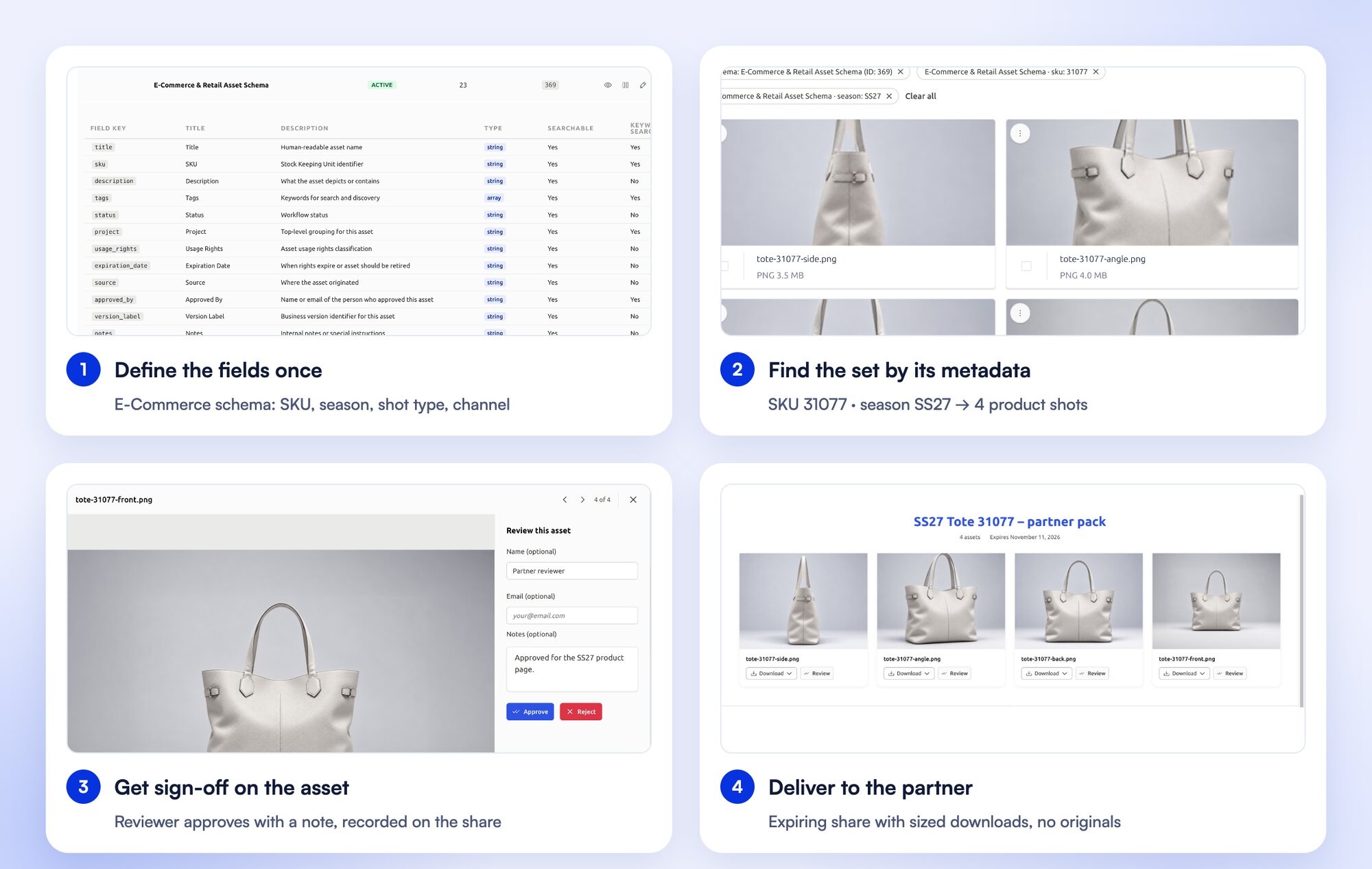
Upload a shoot and organise it into a collection
Upload a set of photos, add the details your team searches by and group the shoot into a collection, without copying files into new folders.
Sharing assets and collecting reviews
Send an image or clip for internal or external review, collect comments and approve or reject it, with due dates and progress in Reviews. Each share carries its own expiry, optional password, recipients and download options, and shows what the recipient downloaded.
Google Drive offers file approvals on eligible Workspace editions, and Dropbox Replay supports creative review and approval.
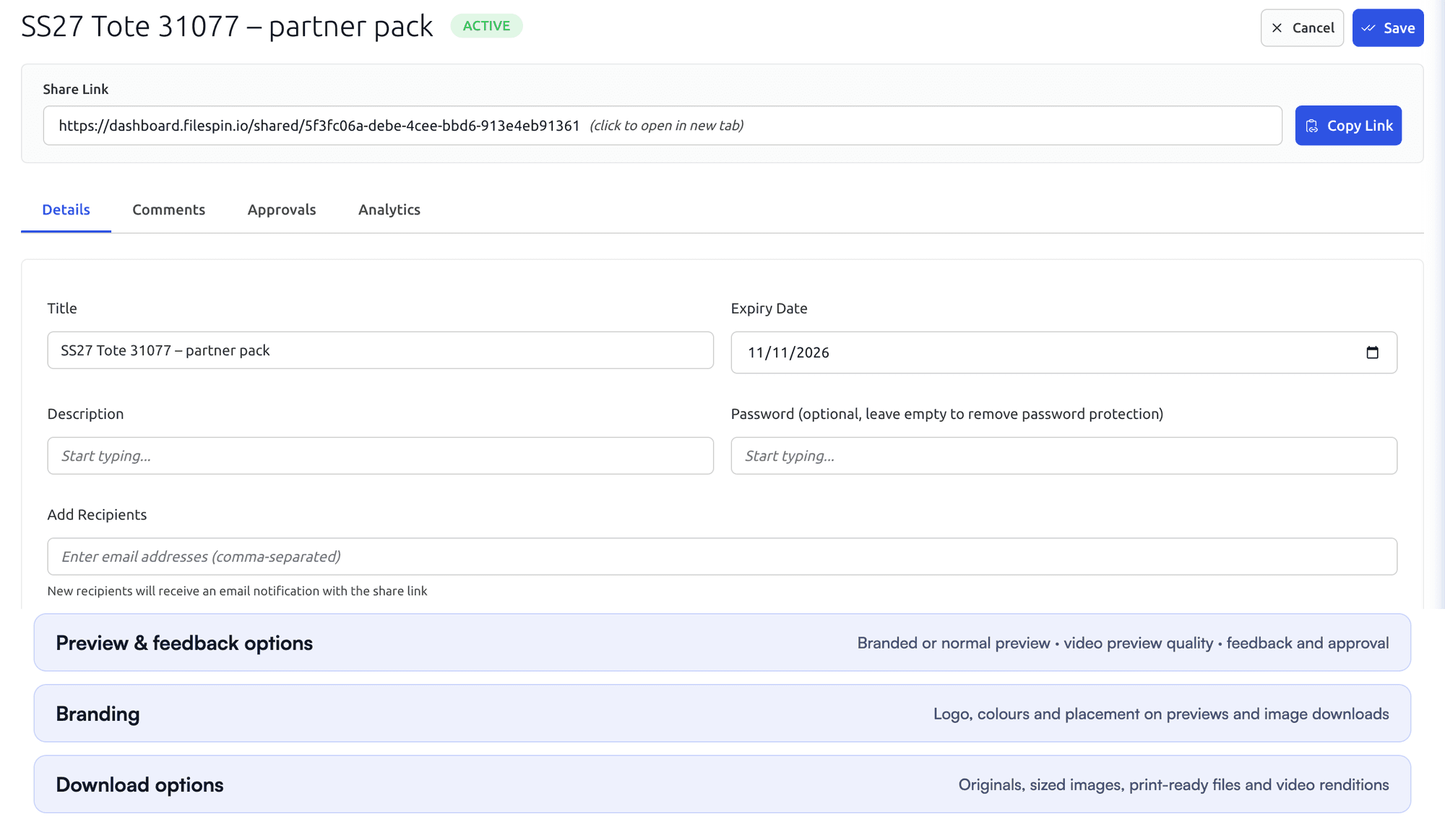

Share assets with a client or colleague
Select assets, choose what the share is for and send a branded Share Page that recipients can open without logging in.
Preparing and delivering images and videos
Create the size, crop and format each channel needs from a URL, with AVIF and WebP for compatible browsers; standard on-demand outputs don’t count against storage. Remove backgrounds and create ghost-mannequin shots before review, and turn recordings into SD and HD versions, adaptive HLS streams, clips and storyboards.
Shared drives store and preview the files; channel outputs come from the tools you connect to them.

Prepare product photos for your storefront
Clean up product photos with background removal, then create the sizes and formats your storefront needs from the same original.
Automate recurring work and stay in control
Do day-to-day work from Dashboard menus and APIs. When you want help, ask the AI Agent to find assets, update metadata, prepare images and create shares, or connect Claude or ChatGPT through the MCP Connector. Scheduled Agents run recurring work, such as tagging a collection on a schedule.
Agent activity records every operation, and per-user credit limits keep usage in check. You can undo tagging and metadata changes. The Adobe panel and Make, Zapier and n8n integrations connect FileSpin to the tools you already use.
Google Workspace, Dropbox and Microsoft 365 offer their own AI assistants, with features that vary by plan.
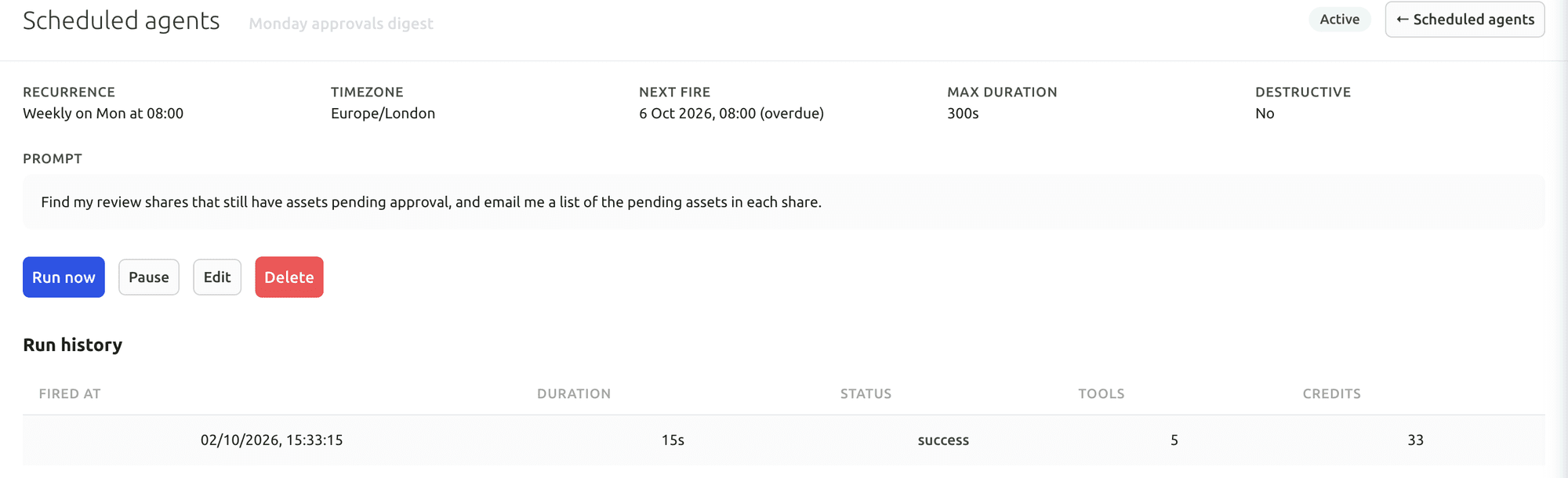
Your first useful task with the Dashboard AI Agent
Give the Dashboard AI Agent a plain-language request, watch it find the assets and carry out the task, then check the result in the library.
Connect Claude or ChatGPT through the MCP Connector
Connect an AI assistant to your FileSpin account, then search assets, update metadata and create shares from the chat, under your own permissions.
Explore the AI Agent and MCP tools →
Connect campaign delivery with operational insights
Tag campaign links by channel, placement and audience, then see the requests, bytes and assets delivered under each campaign. Share analytics shows which partner downloaded which file and output. Usage shows storage, API requests, delivery and credits by user and period.
Each shared-drive service reports file activity in its own activity and admin tools.
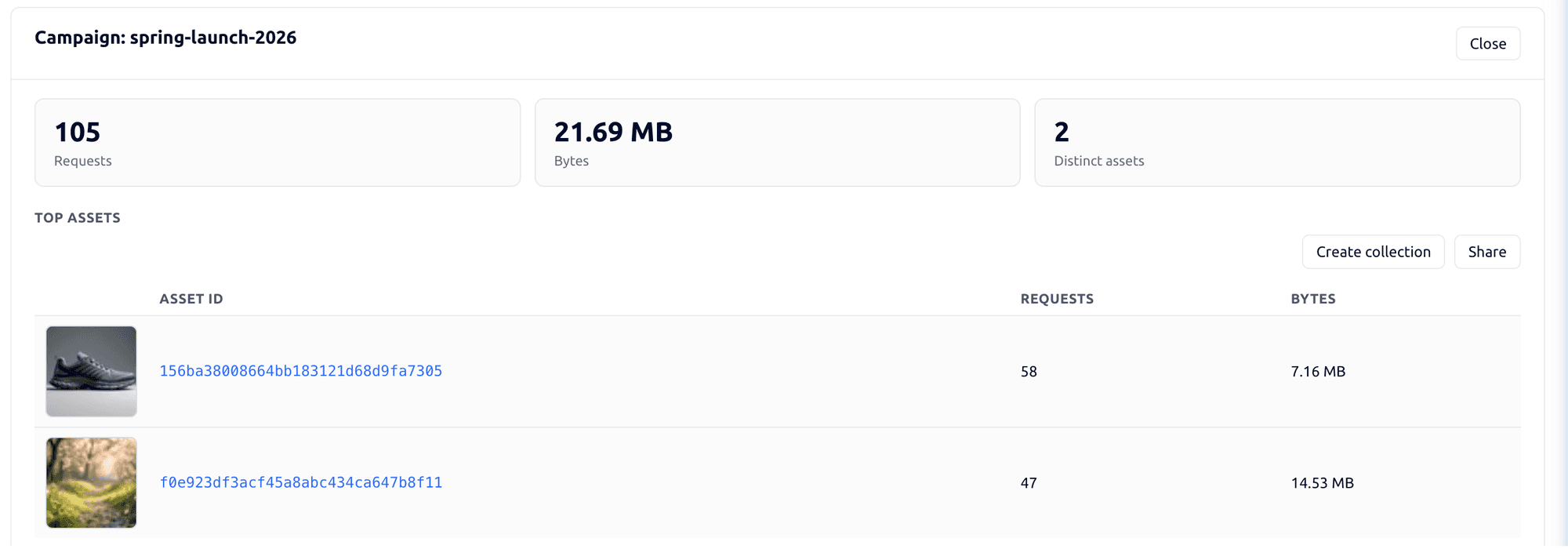

Explore the FileSpin platform →
Pricing and what you keep
Keep Drive, Dropbox or SharePoint for documents and everyday collaboration, and give the media your team prepares again and again its own workflow in FileSpin. Cloud import brings files straight across from Dropbox, Google Drive, Box and OneDrive, so you can start with one collection and grow from there.
FileSpin publishes its subscription pricing, and standard on-demand image sizes don’t count against storage, so adding a size for each channel doesn’t add stored files. Start a 30-day free trial with your own media; no credit card needed.
Bring your media across from Drive, Dropbox, Box or OneDrive
Cloud import pulls files straight from Dropbox, Google Drive, Box and OneDrive. With managed migration, the FileSpin team maps folder paths to collections and business fields and keeps source file IDs and chosen revisions, while documents stay in the system they belong to.
Map folder paths and business fields to collections and schemas. Preserve source file IDs and chosen revisions. Keep live documents, document editing, retention policies and collaborative histories in their owning office system unless explicitly included.
For Google Drive, enumerate the selected shared drives with authorised Drive API access, save file IDs and labels, and download binary files or export Google-native documents to an agreed format. Track each shared drive’s change log. For Dropbox, use authorised file listing and download operations, saving file IDs, revision values and paths; maintain the correct team namespace. For SharePoint, use Microsoft Graph to enumerate library items, retrieve list-item fields separately, and download file content through the returned short-lived download URL.