Migration guide
Move media from a custom media stack to FileSpin
Move to FileSpin with every original reconciled to its application record and a working delivery route. Start with a new channel request: an output is prepared, approved and published, and a failed processing job is traced and re-run while the asset record stays intact.
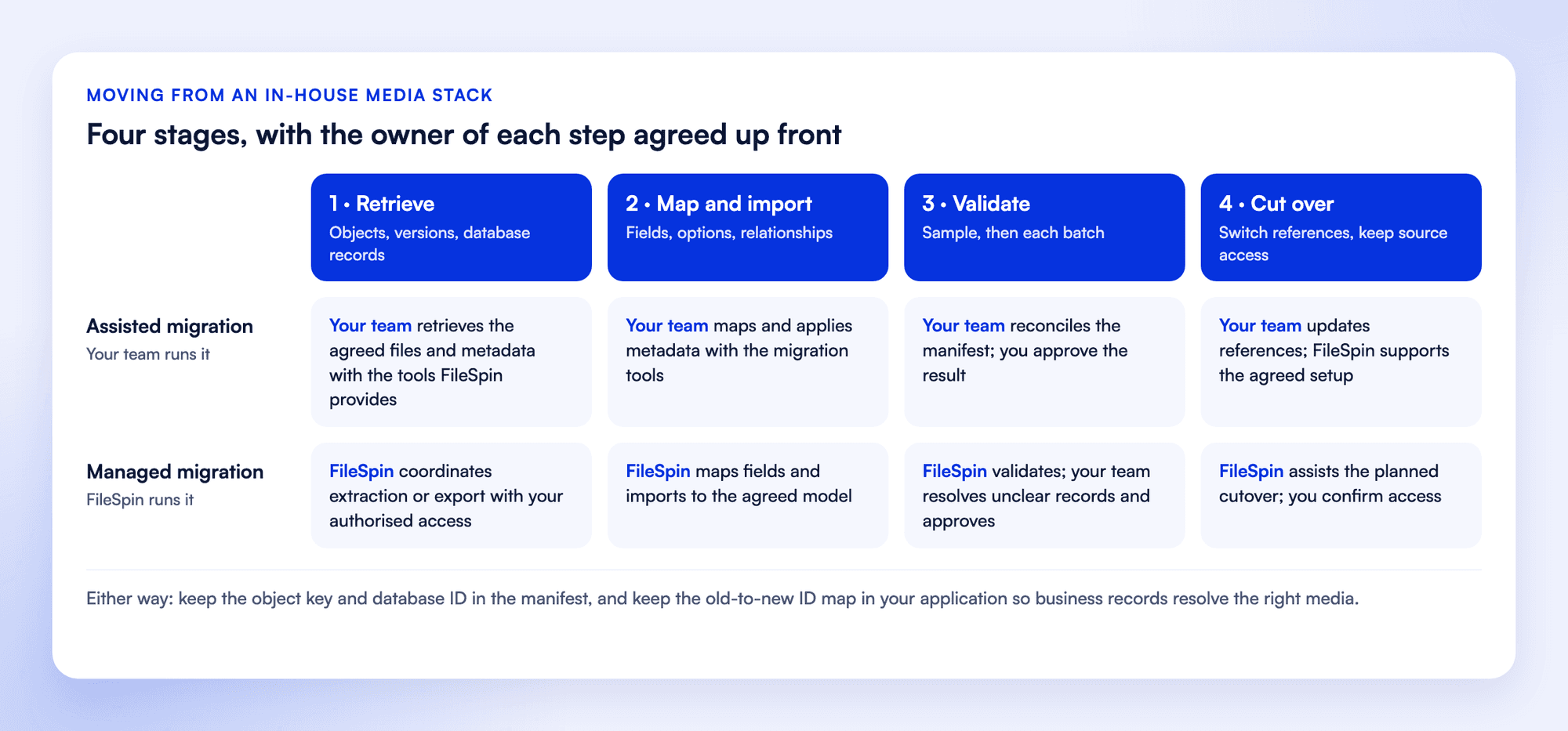
There are two ways to run the move. Both start with an inventory and a representative sample before the full transfer.
1. Retrieve the source files and records
The migration starts from your object store, metadata database and delivery configuration. For an S3 bucket, current objects are listed page by page (1,000 keys per page), or taken from an S3 Inventory report for very large buckets, and originals are copied with read-only access. Earlier versions come from the bucket’s version history when you keep it. Application metadata and relationships are exported from your database with the object keys and version references that join them. Google Cloud Storage and Azure Blob Storage work the same way through their own list and read operations.
Retrieval uses an authorised source account, with credentials kept out of exports, screenshots and public URLs. Each completed inventory page and download is saved, so interrupted work resumes where it stopped, and expired download links are refreshed.
2. Create a manifest you can reconcile
One record per source file or retained version: source system, asset ID, file or version ID, original name, source path, file type, bytes, a checksum recorded at download, tags, custom metadata, collection membership, rights information and source update time. The FileSpin asset ID and transfer status are added as work progresses.
Original files are kept separate from thumbnails and delivery renditions. Every exception, such as a missing original, a restricted download or an unsupported format, is listed with its resolution.
3. Map what moves and what gets rebuilt
Part of the library | What happens |
|---|---|
Originals | Authorised source files downloaded and reconciled against the manifest |
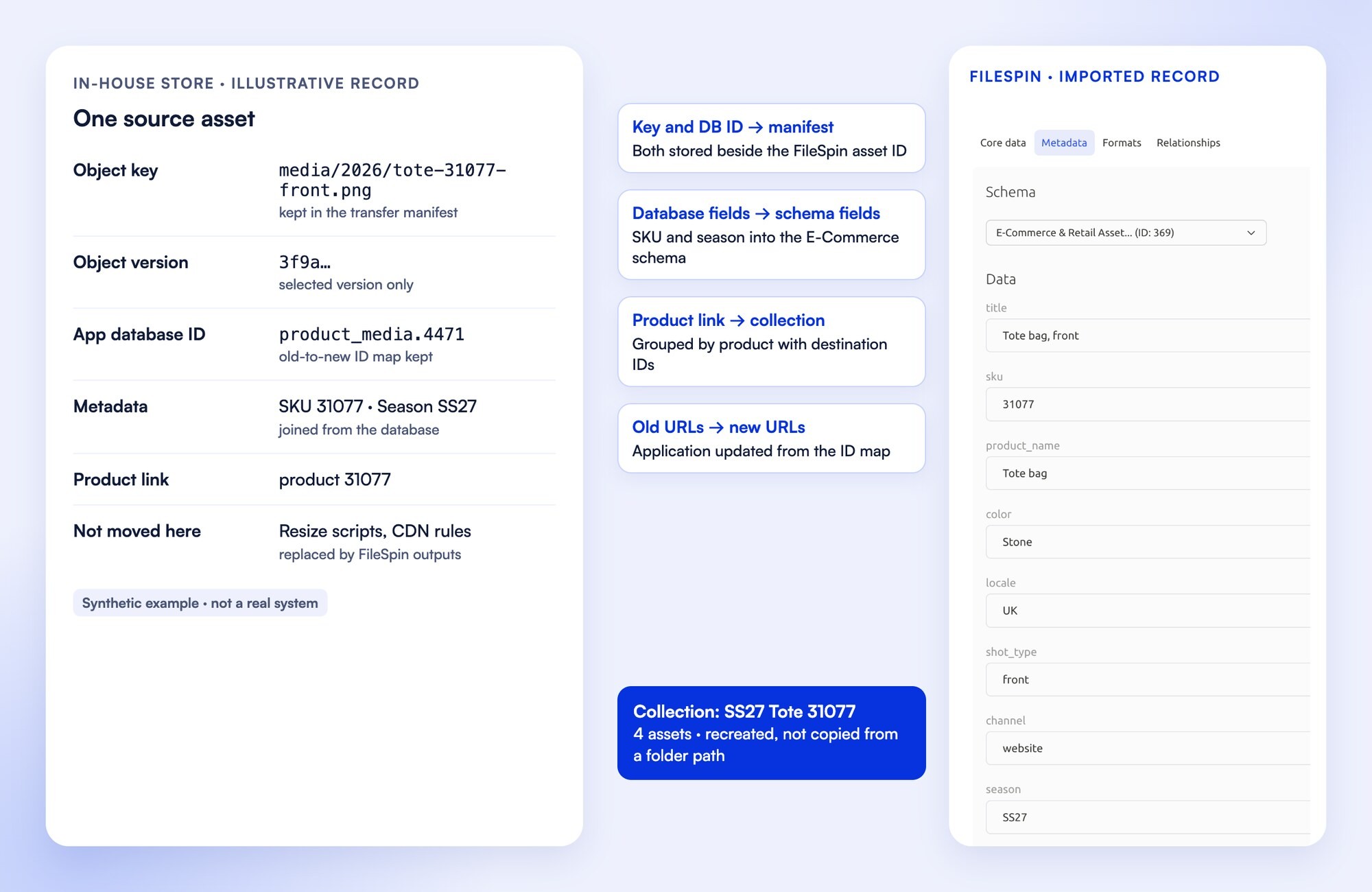
Metadata | Application IDs, object keys, product links, metadata types and selected versions map to FileSpin records. The old-to-new ID map goes into your integration, so business records resolve the intended media. |
Collections | Collections built from the groupings in your database, such as products, campaigns or galleries, matched by application ID |
Versions | The object versions you keep, retrieved alongside the current files |
Access | Roles, private delivery and review workflows set up in FileSpin, in place of your application’s media access rules |
Delivery | Processing jobs, callback handlers, signed delivery and cache rules move to FileSpin one route at a time, and each complete application route is tested. Business-specific algorithms and any output FileSpin doesn’t produce stay in a service you keep. |
History | Request logs, processing history and audit records stay in your own systems, or are archived from them as a record |
4. Import and check a sample
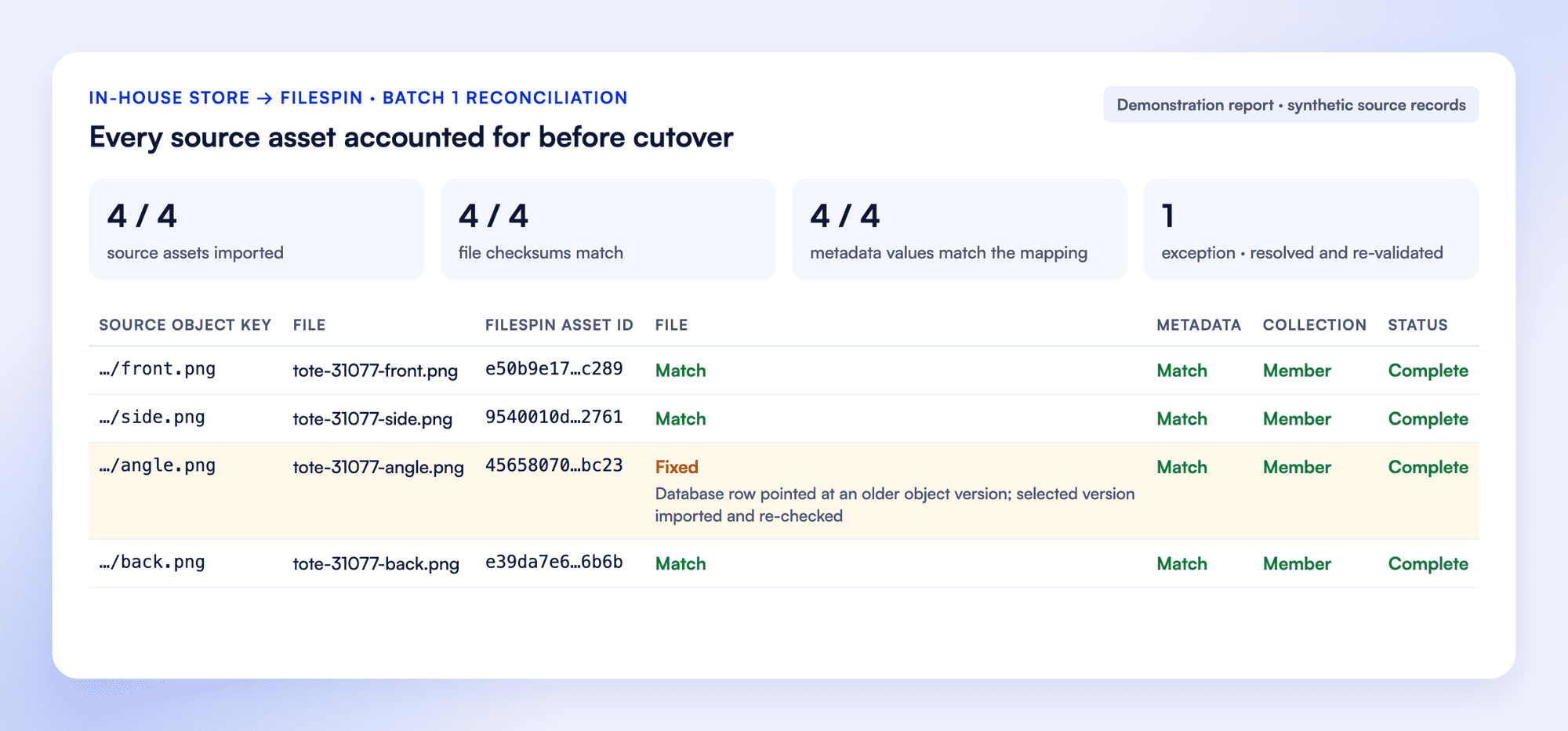
The sample includes several file types, a multi-value metadata field, an asset in more than one collection, a retained revision and restricted content. Files are loaded, FileSpin IDs recorded, mapped metadata applied and relationships rebuilt.
In an assisted migration, your team stages the retrieved files with the tools we provide and loads metadata through the mapping. In a managed migration, the FileSpin team carries out these steps.
The sample passes when:
- The correct file and intended version opens in FileSpin.
- Required fields, types and controlled values match the mapping.
- Collection membership counts match and related assets resolve.
- Version records and current files match the scope.
- An authorised user gets access and an unauthorised user is refused.
- A content owner finds the selected assets by business fields and completes a review.
- Real pages, players and feeds return the intended output, including after a replacement.
- A test campaign link and a share download appear in Delivery Insights and Share analytics.
- If agent work is included, its first run touches only the selected assets, stays within budget and reports its outcome.
- Every exception is listed and resolved before the full run.
Media stack migration questions
Do our existing media URLs keep working?
Can we keep our current stack running during the migration?
Do our database records and metadata come across?
Do we need to run the migration ourselves?
5. Cut over
6. Sign off the result
- Every in-scope source file has a destination ID or an accepted exception.
- Required metadata, relationships, versions and access controls pass the agreed checks.
- Applications use the intended delivery route and updates appear correctly.
- The exception report, ownership map and recovery procedure are handed over.
Plan your migration with FileSpin. Tell us the size of your library, the history you need and the systems it feeds, and we’ll scope an assisted or managed migration with you.