Migration guide
Migrating from Bynder to FileSpin
You can run an assisted migration with your technical team using our tools, or choose managed migration and have the FileSpin team carry out the agreed work. Both start with an inventory and a representative sample before the full transfer.
This guide covers extraction, metadata mapping, validation and cutover. The technical handoff for your migration team follows Bynder’s public API documentation, checked on 13 October 2026.
1. Choose who runs the migration

2. Decide what moves
Part of the library | What happens |
|---|---|
Originals | Retrieved and reconciled against the inventory |
Metadata | Values, field types and controlled options mapped to FileSpin fields |
Collections | Membership retrieved and collections rebuilt with the same assets |
Versions | The versions and additional files you need, retrieved through Bynder’s version download |
Access | Rights metadata kept as fields; access set up and tested by role in FileSpin |
History | Approval history and analytics archived from Bynder; templates and guidelines you still use rebuilt |
Delivery | CMS, PIM and storefront references switched from Bynder URLs to FileSpin URLs using the ID manifest |
Each Bynder asset ID stays in the manifest beside its FileSpin ID, so every reference and reconciliation can be traced.
3. Improve the workflow as you migrate
Use the move to improve how your team works. Add any of these to the scope; each is configured and checked alongside the transfer.
4. Retrieve the content from Bynder
For an API-based transfer, enumerate assets with Bynder’s asset API, then obtain authorised download locations. The download endpoint requires the appropriate roles; archived, watermarked and limited-use assets have additional requirements. Historical versions have a separate download endpoint.
Bynder’s offboarding service, requested through your customer-success contact, delivers files to an SFTP server or S3 bucket. By default it includes current versions and a metadata report; version history, deleted assets and attachments must be requested at the start. In a managed migration we coordinate the request with you.
In an assisted migration, your team stages the retrieved files with the tools we provide, with the metadata manifest keyed by Bynder asset ID. A sample run proves the extraction and import before the full transfer.
5. Export the taxonomy as well as the values
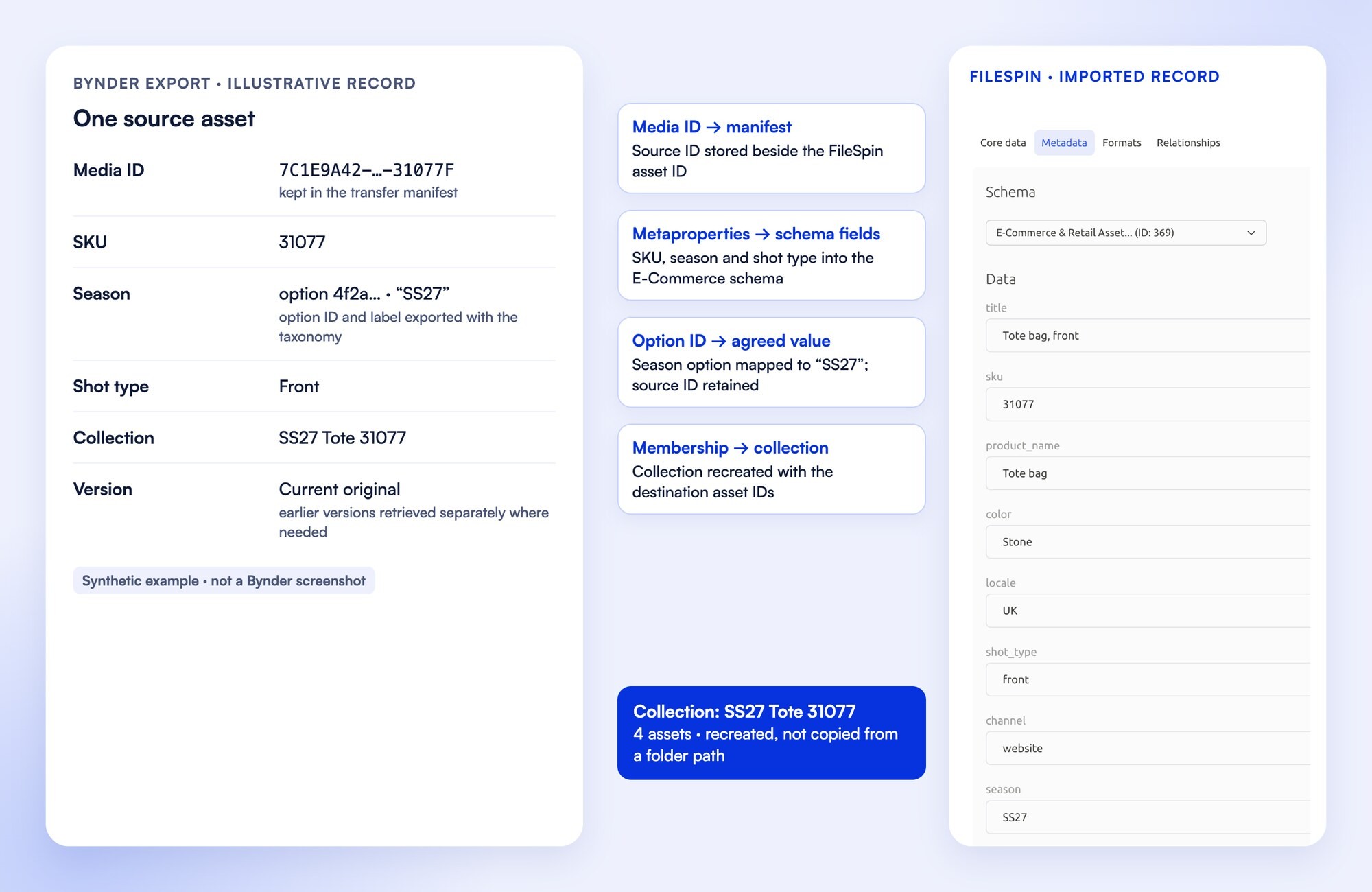
Bynder’s metadata CSV carries the values on selected assets. Export the metaproperties and their options too, with their IDs and labels, so every value maps to a defined field. Retrieve collections and their membership as well, so each collection is rebuilt with the same assets.
6. Acceptance checks
Run a sample that covers your important file types, metadata fields, restricted assets and required versions. It passes when:
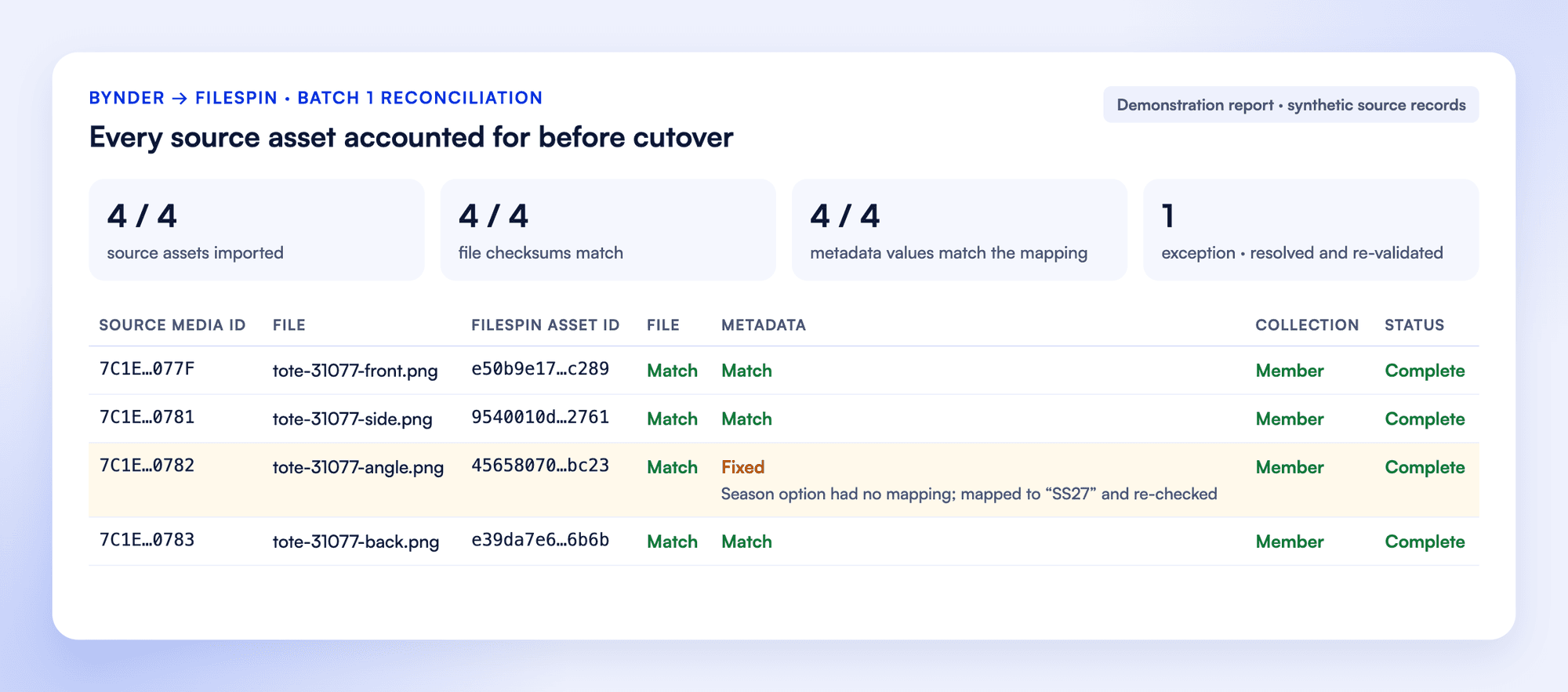
- Every expected original is accounted for and opens correctly.
- Metadata values, controlled options and collection membership match the mapping.
- Reviewers and other users have the intended access.
- The mapped fields find the selected assets, and a review completes with the intended recipient.
- The receiving page or application shows the required output, including after a replacement.
- A test campaign request and share download appear in Delivery Insights and Share analytics.
- If agent work is included, its first run touches only the selected assets, stays within budget and reports its outcome.
- Every exception is listed and resolved before the full run.
7. Transfer in batches
Progress is recorded by Bynder asset ID, so a retry resumes instead of duplicating. Requests stay within Bynder’s rate limit. Assets changed during the transfer are picked up by modified date, and deletions and collection changes are reconciled against a fresh inventory before cutover.
Technical handoff for your migration team
API retrieval, field mapping and transfer-manifest details for your migration team.
Use this section with the source inventory and acceptance checks above. The endpoint map describes retrieval; the mapping and manifest are illustrative formats for your migration integration.
Source access
Use OAuth 2.0 bearer authentication with an authorised Bynder user. Request asset:read for files and versions, collection:read for collections, and meta.assetbank:read for taxonomy. Access also depends on the user’s permissions. Keep credentials in your integration’s secret store.
Original and version downloads require MEDIAHIGHRES. Archived, watermarked and limited-use assets require their corresponding download roles: ARCHIVEDOWNLOAD, DOWNLOADWATERMARK and KEYVISUALSDOWNLOAD. Include these asset types in the sample.
Retrieval map
What to retrieve | Request and capture |
|---|---|
Inventory |
|
Originals |
|
Versions |
|
Fields |
|
Options |
|
Collections |
|
The inventory’s original field is returned only for public assets on accounts with an SEO base URL, so retrieve originals through the download-location operation. Request field definitions without inline options and fetch each field’s options separately.
Paging and checkpoints
The media list supports page/limit and a cursor from the X-Bynder-NextCursor response header; beyond page × limit of 100,000, use the cursor. Collections and metaproperties page with page. The asset and collection endpoints document a maximum page size of 1,000. Save progress after each batch.
Record each source asset and version before import, then attach the FileSpin ID after success. A retry resumes the same record rather than creating another copy. Store durable source IDs in the manifest; resolve download locations when needed.
Bynder documents 4,500 requests per IP address in any five-minute window. Coordinate workers behind the same IP. On a 429, pause the shared request queue; the block lifts after five minutes without requests from that IP. Checkpoint failed work and resume. Refresh expired authorisation, investigate permission errors and report unavailable files separately.
Values, types and relationships
Export both the source schema and tagged asset values. Keep option IDs as well as readable labels. Define destination fields before import and validate dates, multi-value fields and required values on the sample.
- SKU: The product schema’s SKU field. Check: exact identifiers, including leading zeroes.
- Season: The agreed season value; source option ID kept in the manifest. Check: option mapping and asset value match.
- Collections: The rebuilt collection with FileSpin asset IDs. Check: counts and individual IDs match.
- Versions: A link from the imported file to its source and version. Check: file and version relationship match.
- Rights: A kept field plus the matching access setting. Check: test users see only what they should.
Transfer manifest
Use one record per source file/version. The following column names are an example for your integration, not a FileSpin import schema:
Keep credentials and temporary signed download links out of the manifest. Link each completed row to its validation result. Record a checksum at download and verify the received file before marking the row complete.
Change reconciliation and sign-off
Save the extraction start time. Use modified-date filtering to pick up updates, with a small overlap between runs and deduplication by source ID and version. Reconcile deleted assets and collection or taxonomy changes against a fresh inventory.
Before cutover, complete a final inventory comparison, resolve exceptions, test access and replace application references. Keep Bynder read-only through the verification period.
Bynder migration questions
Do our Bynder URLs keep working?
Can we keep working in Bynder during the migration?
Do metadata and collections come across?
Do we need to run the migration ourselves?
8. Cut over
Plan your Bynder migration with FileSpin. Tell us the size of your library, the history you need and the systems it feeds, and we’ll scope an assisted or managed migration with you.