Migration guide
Migrate from Cloudinary to FileSpin
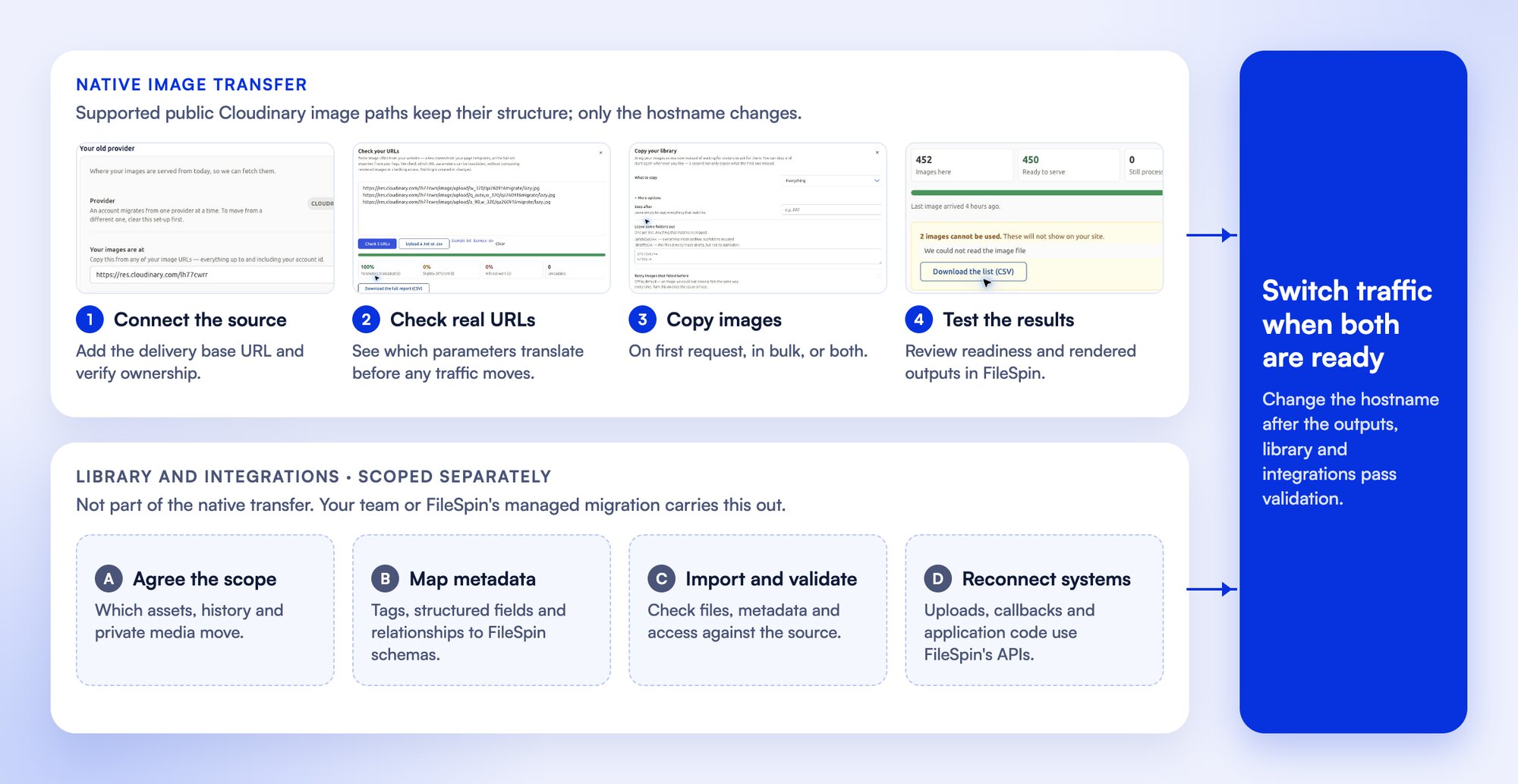
Move to FileSpin and keep your Cloudinary image URLs working. Change the hostname, and your public image paths and supported transformations carry on while your library copies across, on first request or in bulk.
The setup follows the same sequence for both approaches: connect Cloudinary, verify ownership, choose how to copy your images, test your URLs, then switch the delivery hostname.
Choose who carries out the migration
Assisted migration: we provide the necessary tools to migrate assets from on-premise and cloud storage while your technical team runs the migration, including the mapped metadata import and relationships.
Managed migration: the FileSpin team carries out the migration: source extraction or export coordination, field mapping, import, validation and cutover support.
Native URL migration, below, moves your public images; assisted or managed migration covers the rest of the library.
1. Scope and prerequisites
This guide covers Cloudinary public image delivery using /image/upload/, eligible original image files, and translation of supported image transformations.
This route serves public /image/upload/ images. Video, raw files, fetched images, and private and authenticated assets move in the planned migration, alongside your metadata, versions, uploads and automation, and are checked before traffic switches.
Have these ready:
- A FileSpin administrator account.
- Your Cloudinary delivery base URL, including the cloud name: https://res.cloudinary.com/your-cloud-name. Cloudinary accounts on their own delivery domain are supported on the Custom and Enterprise plans.
- Your Cloudinary API key and API secret for connection testing, credential-based ownership verification and library listing.
- A representative set of image URLs and access to their originals.
- Access to the application settings or stored image URLs where you can replace res.cloudinary.com with cdn.filespin.io.
- A migration window, with a named owner for monitoring and recovery.
Your Cloudinary API key and secret connect the source, verify ownership and list the library; private and authenticated images move in the planned migration.
Keep Cloudinary available throughout testing and while FileSpin still needs to fetch uncopied images.
2. How migration works
Migrate images from Cloudinary to FileSpin
Connect your Cloudinary source, verify ownership, check your image URLs, then copy images on first request or in bulk before switching traffic. The recording shows a test hostname; your account uses cdn.filespin.io.
FileSpin reads the Cloudinary-style URL, identifies your verified account and translates supported transformation parameters. A source-path mapping connects the old public ID to its FileSpin asset.
- Receive the requested image path.
- Resolve the verified account and translate supported parameters.
- Deliver from the ready FileSpin asset, or fetch the source rendition while the original copies.
- Reconcile the copied original and test later FileSpin-rendered output.
A first response can therefore come from Cloudinary through FileSpin while the original is being copied. Later requests use the FileSpin asset when it is ready.
You can combine them: bulk-copy your live catalogue, then leave lazy fetching enabled temporarily for eligible images missed by that selection. Bulk copying gets the selected images ready in FileSpin before you switch delivery.
3. Inventory your Cloudinary setup
Collect enough examples to represent your application, including seasonal images and low-traffic pages.
Before configuring, public images are separated from assets on another route, and each exception has an owner. Replacements made in Cloudinary after an image is copied come across in the final sync.
4. Configure FileSpin and choose a migration method
Connect your Cloudinary account
- In FileSpin’s left navigation, open Configure → Migrate to FileSpin. On a new setup, choose Cloudinary. An account can migrate from one provider at a time.
- Under Your old provider, enter Your images are at. Copy only the base URL through the cloud name. For example, from https://res.cloudinary.com/acme/image/upload/w_300/products/shoe.jpg, enter https://res.cloudinary.com/acme.
- Enter the Cloudinary API key and API secret in their respective fields.
- Click Test connection. Check that the connection succeeds and any returned sample paths belong to the intended cloud. Testing typed credentials does not save them.
- Click Save. Saving supplied credentials also runs a connection check. Verify that the source is saved and connected.
Expected result: the Cloudinary source is connected. If testing fails, check the cloud name and the credentials together. If saving reports that the identifier is already claimed, resolve that account association with FileSpin before continuing.

The Your old provider section with the Cloudinary delivery base URL.
Verify ownership
Under Serving your old URLs, check Ownership. A successful credential check may already show Verified. If it still shows Not verified, choose Verify now and wait for verification of the same cloud name used in your URLs.
Expected result: Ownership shows Verified beside the same cloud name used in your image URLs. Continue with the saved API credentials; no verification-file upload is needed for this walkthrough.
Option A: migrate as images are requested
- Turn on Fetch missing images from your old provider.
- Note the hostname in Point your images here: cdn.filespin.io.
- Make a test URL by changing the hostname of one supported Cloudinary image URL, keeping the cloud name and the rest of its path intact.
- Request the image, then verify that its original becomes ready in FileSpin and that a later FileSpin-rendered response meets your requirements.
- Complete the checks in sections 5–7 before switching live traffic.
Expected result: a missing eligible image is served through the origin-fetch path, copied in the background, and subsequently delivered from FileSpin. Keep fetching enabled and Cloudinary available until you have reconciled all required images.
Lazy migration only copies images that are requested.

Serving your old URLs: ownership verified, missing-image fetching on and the cdn.filespin.io hostname.
Option B: copy your library before switching
Open Copy library… under Getting your images across. Choose the scope that matches your migration:
Enter each image’s Cloudinary public ID, one per line. Include any folder that is part of the public ID, but leave out the hostname, cloud name, /image/upload/, transformation settings and version segment. For example, this delivery URL:
uses the public ID products/shoe. A path list could be:
Use the public ID shown in Cloudinary, rather than inferring it from the Media Library’s display folder: in dynamic-folder setups these can differ. The usual image public ID has no file extension; retain an extension only if it is genuinely part of that public ID. FileSpin combines the supplied ID with your configured Cloudinary source to fetch the original. Full delivery URLs are also accepted by the current importer, but are not required.
Use the dialog’s Example .txt or Example .csv to match the supported file shape. A CSV can use a path column. Preview a small sample on your deployment before submitting a large export.
Expand More options:
- Stop after: set a positive limit for a small trial; leave it empty for the complete matching selection.
- Leave some folders out: enter one exclusion per line. archive/** excludes descendants as well; drafts/* matches direct children only.
- Retry images that failed before: enable after fixing the reason those images could not be processed.

Then:
- Select Preview first. It lists the matching images and the reasons for any exclusions, without copying them.
- Check the selection against your inventory. Correct the folder, tag, paths, limit or exclusions if necessary.
- Select Start copying when the intended selection is ready.
- Wait for the run to finish, then review Found, Copied, Already here, Skipped, Failed and Cannot be used.
- Reconcile the required paths against the destination. Resolve missing or unusable images before cutover.
Closing the dialog does not stop a running copy; use Stop to cancel it. A later run skips images already copied, and replaced originals come across in the final sync.
5. Check URLs and transformation compatibility
What changes in the URL
Replace res.cloudinary.com with cdn.filespin.io, retaining the cloud name, transformation segment and asset path:
acme and the asset path stand for your verified cloud and image. Supported syntax stays as it is; the URL check and output tests confirm each pattern.
Make this change in your application’s generated URLs, base-host setting or stored image references. The supported migration path is a hostname replacement with cdn.filespin.io.
Cloudinary’s URL structure includes transformation, version and public-ID components. FileSpin accepts version segments in the path and looks images up by public ID. Revision history moves in the planned migration.
Run the safety check
- Open Check URLs….
- Paste one full delivery URL per line, or upload .txt/.csv using the provided example format.
- Select Check … URLs.
- Review Parameters translated, Slightly different, Will not work and Unreadable. Download the full CSV report and assign any exceptions.

Compatibility matrix
Supported public image paths include common resize, fit/fill/pad, quality and format operations. Some quality, gravity and chained operations translate with slightly different results, and layers, named transformations and conditionals need their own FileSpin output. The URL check sorts each pattern, and the output tests in section 6 confirm the rendering.
The public image path and Cloudinary public ID are preserved for lookup. Version segments are ignored for lookup, and Cloudinary signatures are not validated as access controls. Private/authenticated images and other resource/delivery types remain outside this route, as described in section 1.
For delivered responses, inspect X-FileSpin-Compat-Dialect and X-FileSpin-Asset-Id. X-FileSpin-Compat-Served-By: origin-proxy identifies an origin-served response when present. X-FileSpin-Compat-Dropped and X-FileSpin-Compat-Unsupported show any dropped or unsupported parameters.
6. Test in parallel
Keep live Cloudinary delivery running while you test the FileSpin endpoint. Include a small untouched test image for the first-request path and an already copied image for destination rendering.
For each case, record the original URL, FileSpin URL, date/environment, HTTP status, content type, dimensions, bytes, serving headers and visual/access verdict. Save the records using the test record fields listed above.
A practical response check, after replacing the illustrative cloud and path:
Check the saved image as well as the headers, so the response is the FileSpin rendition your layout expects.
Cutover criteria: required cases pass; exceptions have a working route; required bulk copies are ready; monitoring is available; and recovery has been rehearsed.
7. Switch delivery and prepare recovery
Replace the Cloudinary hostname in your application
- Preserve the current Cloudinary base-host configuration and deployment so it can be restored.
- Change the image hostname to cdn.filespin.io for a small approved set of pages or traffic. Preserve the cloud-name path.
- Update image-loader/CDN allowlists, Content Security Policy and other integration settings that restrict image hosts.
- Confirm in browser requests and FileSpin delivery evidence that the selected pages use the target endpoint. Check several sizes and a copied asset’s response headers.
- Monitor errors, latency, missing-image retrieval, copy failures and visual regressions. Expand only after the selected slice meets your acceptance criteria.
Recovery
If delivery or required outputs fail, restore the previous application image hostname for the affected slice. Keep both services operating until the reverted application configuration has reached users and delivery has been checked.
Recheck real pages and access rules after reversal. Preserve the migration setup, reports and copied assets while investigating. Clear this set-up removes the identifiers used to resolve old paths; it is not a rollback control for live compatibility URLs.
Routing reversal does not copy new FileSpin uploads back to Cloudinary or reverse writes. Keep the libraries aligned during overlap, or explicitly handle images created after cutover before reverting their delivery.
8. Move uploads and remaining library data
Changing delivery does not change where your application uploads new files. If your application still sends new images or replacements to Cloudinary, those images continue to depend on Cloudinary. This stage is needed when moving those uploads too; it is not required just to test delivery of existing images. Identify the upload code or widget, saved upload settings, image-replacement jobs and processing notifications that need to move. Use FileSpin’s asset lifecycle guide for the upload and processing integration, then test a complete sequence: upload → process → store the returned asset ID → render → receive and handle the callback.
New FileSpin uploads get FileSpin IDs and URLs; existing Cloudinary paths keep resolving through the migration set-up.
Each copied asset records its source system and Cloudinary path, which the reconciliation uses.
Export the library data alongside the files
- The Admin API lists every required resource and delivery type, up to 500 per page with next_cursor; tags, context and structured metadata are requested explicitly. API secrets stay in server-side configuration.
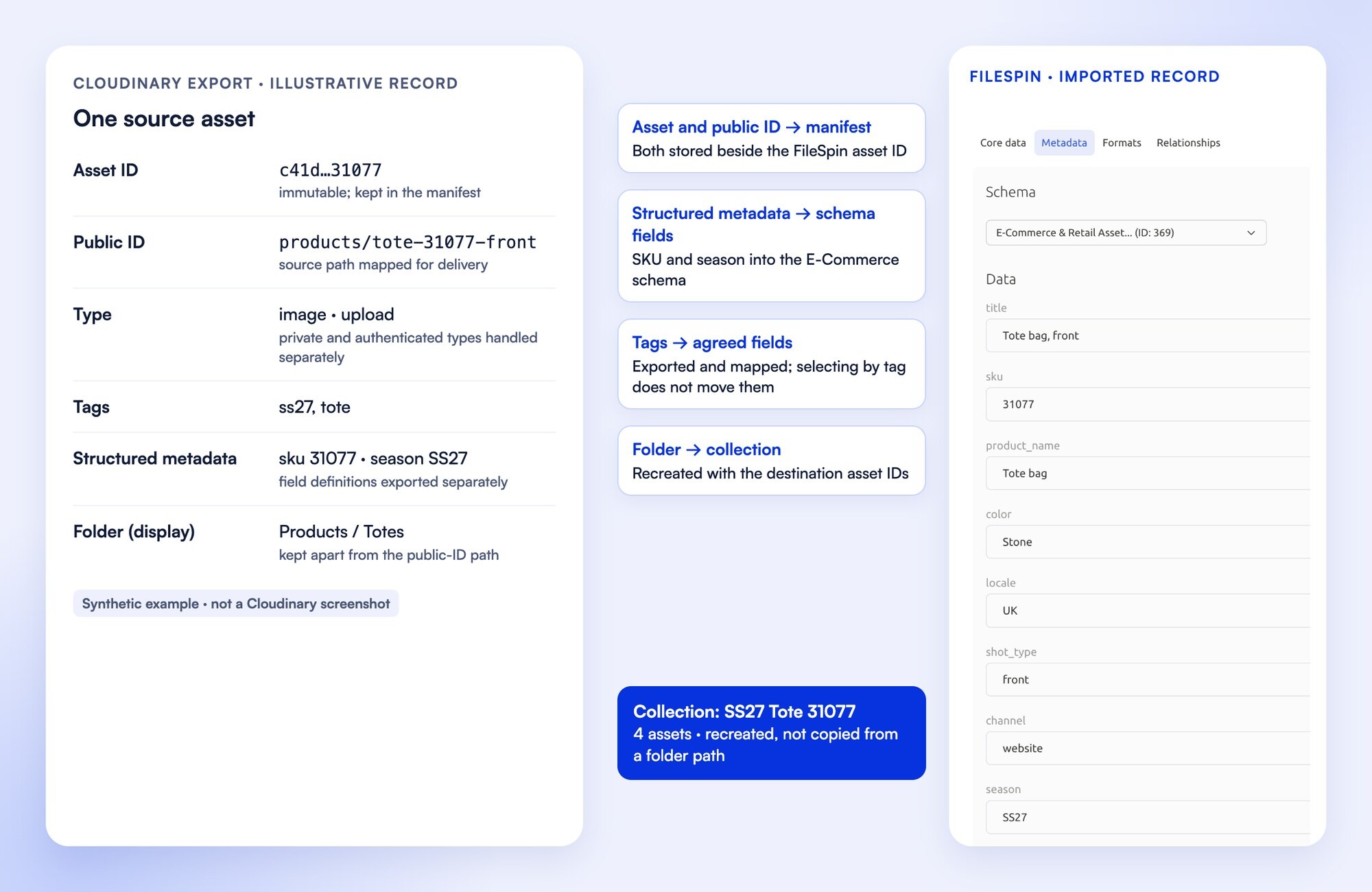
- Save immutable asset IDs, public IDs, folder values, resource type, delivery type and original retrieval references in a manifest. Keep display folders separate from public-ID paths.
- Request tags, contextual metadata and structured metadata values. Export field definitions, types, options and validation rules separately; map these to FileSpin presets or Enterprise custom schemas.
- Originals are retrieved with authorised access. Cloudinary backup is off by default; where it is on, the versions you keep download with download_backup, each stored with its version ID.
- Collections are rebuilt as FileSpin collections from a recorded list, and permissions and approval workflows are set up in FileSpin.
- The export paces itself to Cloudinary’s Admin API hourly limit (500 an hour on Free, from 2,000 on paid plans), reads the reset header after an HTTP 420, and resumes from the manifest.
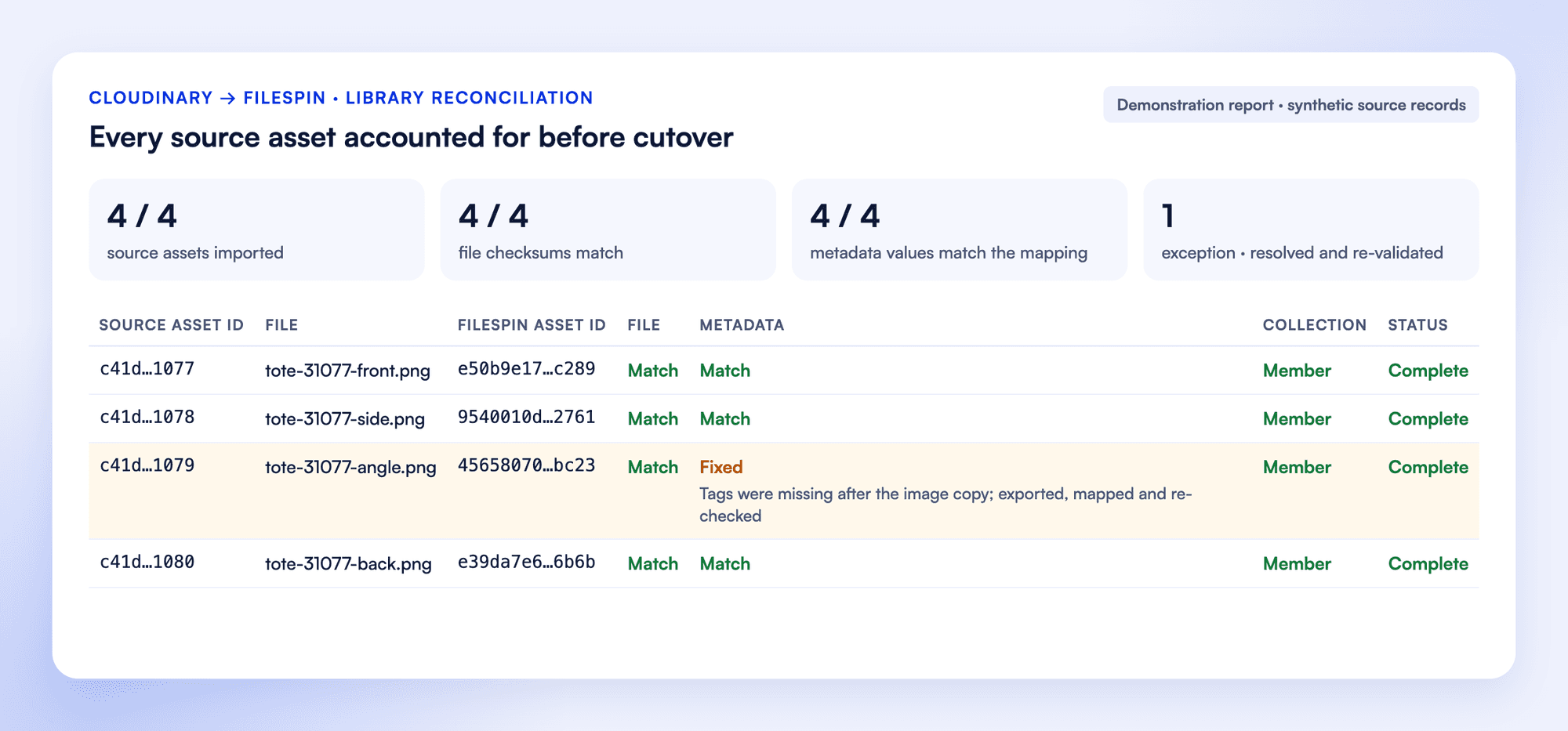
- Reconcile file counts, byte sizes and available checksums. Join imported asset IDs back to the source manifest, then validate metadata types, values and relationships.
- Take a final inventory of new or changed assets before switching writes. Import that delta, test replacement behaviour and retain the source until the acceptance checklist passes. Cloudinary’s notifications for uploads, deletes, renames and tag, context and metadata changes show what changed.
9. Verify completion
Use the readiness counters under Getting your images across. Images here counts copies present; Ready to serve is the relevant readiness signal. Investigate Still processing and Cannot be used, and download the unusable-image list when available.
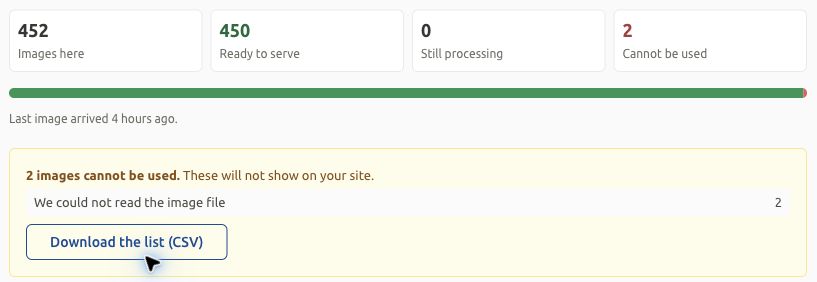
Readiness counters: images present, ready to serve, and the unusable-image report.
Before retiring Cloudinary:
- [ ] Every required source path is accounted for in FileSpin or an explicitly retained route.
- [ ] Required images are ready, and visual/output checks have passed.
- [ ] New uploads, replacements and callbacks work through the intended destination integrations.
- [ ] Metadata, permissions and retained history pass their checks.
- [ ] Origin-fetch activity has been reviewed across a representative period, including low-traffic assets from the inventory.
- [ ] Missing-image fetching can be turned off without breaking the required test set, after cache/configuration propagation is checked.
- [ ] Application logs, scheduled jobs, feeds and integrations show no remaining required Cloudinary dependency.
- [ ] Parallel storage/delivery charges, retention needs and recovery requirements have been reviewed by their owners.
- [ ] A content owner finds the selected assets by business fields and completes a review.
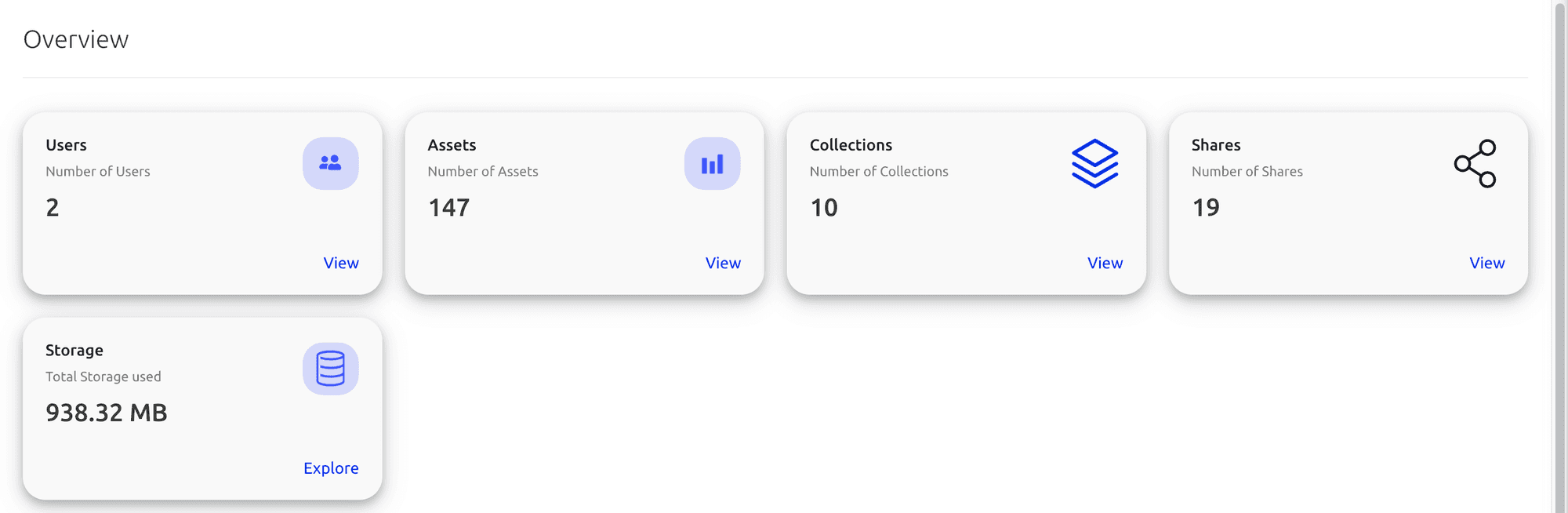
- [ ] A test campaign link and a share download appear in Delivery Insights and Share analytics.
Inventory reconciliation accounts for images nobody requested, which the origin log can’t show.
Cloudinary migration questions
Do our Cloudinary URLs keep working?
Can we keep working in Cloudinary during the migration?
Do metadata, folders and versions come across?
Do we need to run the migration ourselves?
10. Troubleshooting and next steps
For migration questions, contact FileSpin support and include the environment, failing URL, expected behavior and relevant report/header details. Never send API secrets in screenshots or delivery URLs.
Plan your Cloudinary migration with FileSpin. Tell us the size of your library, the URLs and integrations it feeds and the history you need, and we’ll scope the native transfer with an assisted or managed migration.