Technical Deep Dives
A New Image Size Shouldn’t Mean Re-Exporting Your Catalogue
A new layout needs a new image size. With on-demand transformations, that's a change to a delivery URL, not another batch of catalogue exports.
Mohammed Muzzammil
3 min read
Product capabilities, plans and interfaces may have changed since publication.
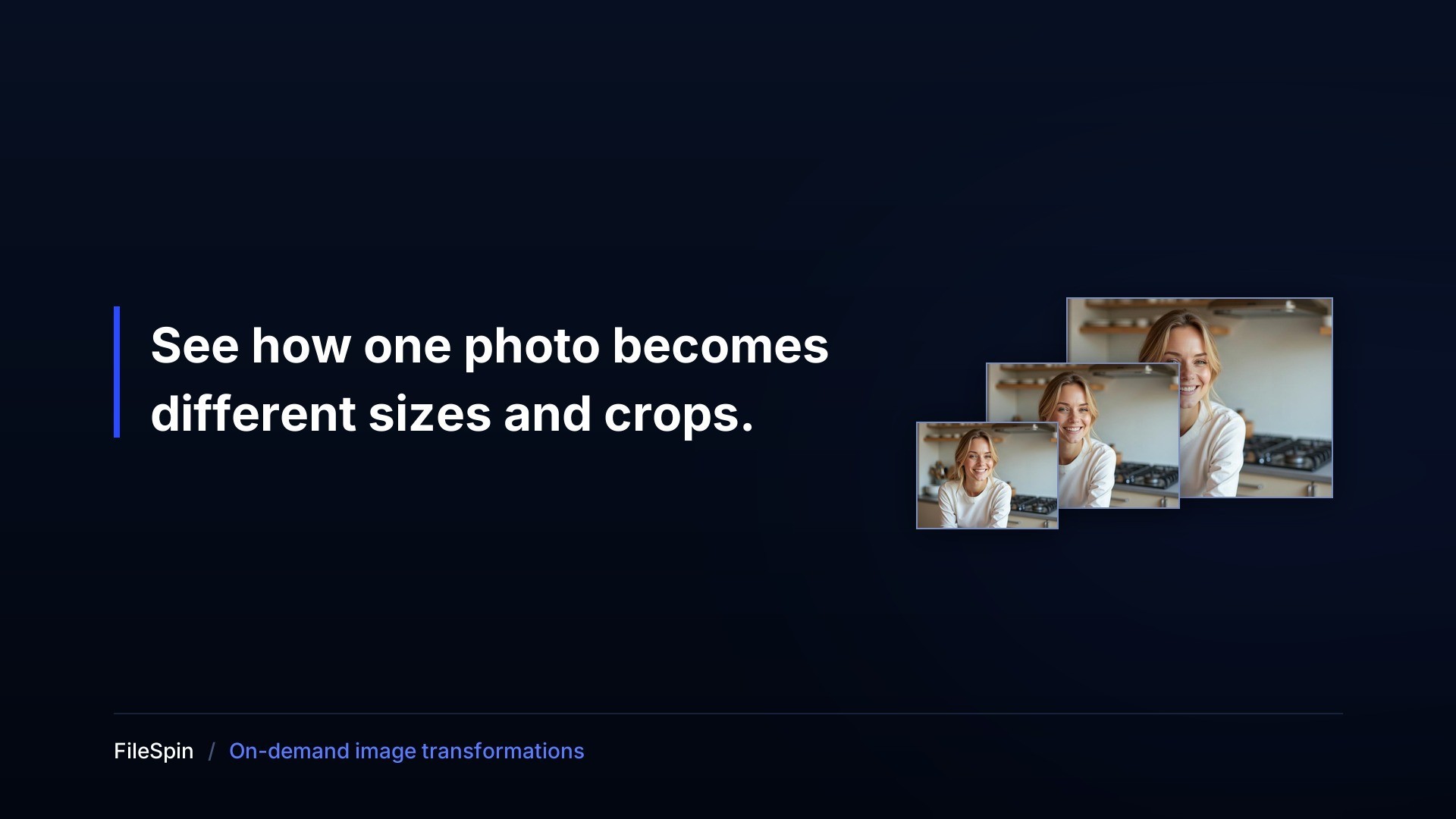
Your new product grid needs 300-pixel images. The existing exports are 200 pixels wide. Now a layout change means reopening the originals, making another set of files and checking that each one still frames the product properly.
Then the email team asks for a wide banner from the same photographs. If each placement needs its own export, the next design change brings the same work back.
FileSpin’s on-demand image transformations (ODI) let you request those sizes and crops from an asset you have already uploaded and processed. Change the parameters in its image URL, and FileSpin generates the output and delivers it through the CDN. Update your website or feed to use that link, without manually exporting another version of the photo.
Below, you can try a size change and compare two crops using real FileSpin image URLs.
Change the size of product image without another export
A small preview is as simple as using resize=300,300 in the image URL.
It asks FileSpin to fit the image inside a 300-by-300-pixel box, preserving its proportions.
Want a larger preview? Change it to resize=600,600.

Small preview — resize=300,300

Larger preview — resize=600,600. Same asset ID.
Checkout the direct image URL and play with the sizes: Small preview · Large preview
The placements around that card work the same way, with different instructions. A square card that must show the whole product needs padding rather than a crop. An email hero needs a wide frame and a fixed format, because email clients are not browsers. A partner feed needs whatever that partner specified. Same asset each time; different text after the question mark.
For developers, that instruction belongs in one place — a shared image component, or the configuration that builds a feed. Change the rule and every URL it produces changes with it. No photograph is exported again, and your normal application or CMS release puts the new links into use.
A quick overview video
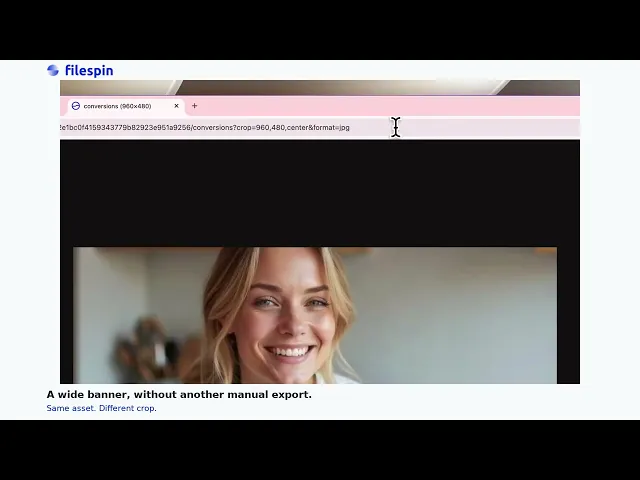
Automatically serve images in the best format - AVIF, WEBP, etc
A phone and a large desktop display do not need the same image size, and your site can offer several sizes of the same asset for the browser to pick from. Each of those sizes is its own URL, and your page still has to tell the browser which ones exist — the image link does not read your layout.
Formats behave differently, and the difference is worth knowing before you plan the work. Leave format out of the URL and the same link can return AVIF, WebP or JPEG according to what the requesting browser says it accepts. We requested one 300×300 demo URL three times, changing only the stated support, and got AVIF, then WebP, then JPEG — same URL, same pixel dimensions, three different formats. Two conditions attach to that: AVIF delivery depends on it being enabled in the serving environment, and anywhere that needs one fixed format should ask for it with &format=jpg rather than depend on negotiation.
Stop a new layout from cutting out the subject
Dimensions alone do not make a good crop. A portrait used in a wide banner needs different framing from the same portrait used on a profile page.

Centre crop — ?crop=600,300,center&format=jpg. The frame cuts through the upper part of the face.

Face-aware crop — ?crop=600,300,face&format=jpg. The same 600×300 frame, shifted to keep the face in view.
Open face-aware crop
Change ?crop=600,300,center&format=jpg to ?crop=600,300,face&format=jpg. Only the alignment changes.
In this example, the centre crop cuts through the upper part of the face. The face-aware crop shifts the frame upward. Both are actual FileSpin outputs, with no local image editing.
For product photography, choose the framing that fits the brief. Face-aware cropping helps with people; padding can be a better choice when the entire product must remain visible. Review the result before using it across a catalogue.
Fewer exports to maintain
Consider an illustrative catalogue of 40,000 products with six separately exported variants per main photograph. That is 240,000 output files to manage.
With ODI, you can request those delivery sizes from the same assets — the set of files you prepare and keep track of stays at 40,000, not 240,000.
