Product
Your FileSpin library, inside Adobe Photoshop, InDesign and Premiere Pro
Bring your FileSpin library into Adobe Photoshop, InDesign and Premiere Pro. Find assets, edit and save work back, with video demos for each plugin.
Growth Team
4 min read
Product capabilities, plans and interfaces may have changed since publication.

We’ve released FileSpin Media Connectors for Adobe Photoshop, InDesign and Premiere Pro so your team can can use your creative workflows right within the applications they work in. Each Adobe plugin puts your FileSpin library in a docked panel inside the Adobe application, so you can find assets, bring them into your work and send the results back.
All three are now available on Adobe Exchange.
Start with the asset, finish with it back in FileSpin
In Photoshop, the workflow starts in the FileSpin panel. Search and filter your library, browse thumbnails and use the metadata your team already maintains to find the asset you need.
You can bring an asset into the current document or open it as a separate document for editing. Photoshop files, including PSD and PSB, open directly.
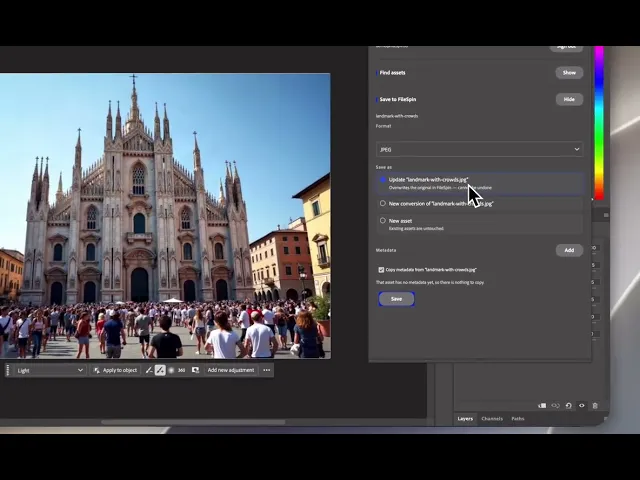
Once you’ve made your changes, you choose how the result goes back to FileSpin:
Update the original asset when the edit should replace its content.
Create a new asset when the result should stand on its own.
Add a conversion when it belongs alongside the original as another rendition.
You can also fill in your account’s metadata fields as you save. The return trip becomes part of finishing the work, with an explicit choice about where the result belongs.
Remembering where the work came from
Moving files between applications is only part of the problem. Keeping track of their relationship matters too.
The Photoshop connector stores the source FileSpin asset reference in the document’s metadata. Close the document, reopen it later, and that reference is still there. The plugin remembers which asset the document came from.
There is also a check before overwriting an asset. If someone has changed it in FileSpin since you opened it, the connector refuses the overwrite. Your save should not silently erase a colleague’s intervening work.
These are small details, but they address questions that come up in everyday creative work: which asset am I editing, where will this save go, and has someone else changed it?
The Photoshop connector listing has the full feature details.
InDesign: bring the library into your layout
The InDesign connector follows the same approach, adapted to working with layouts.
Search the FileSpin panel and place an asset into a selected frame. You can also open INDD, INDT and IDML documents directly from your library.
Placed images are embedded, removing the dependency on an external image file staying at the same path. Each placed item also retains a reference to its source asset in FileSpin.
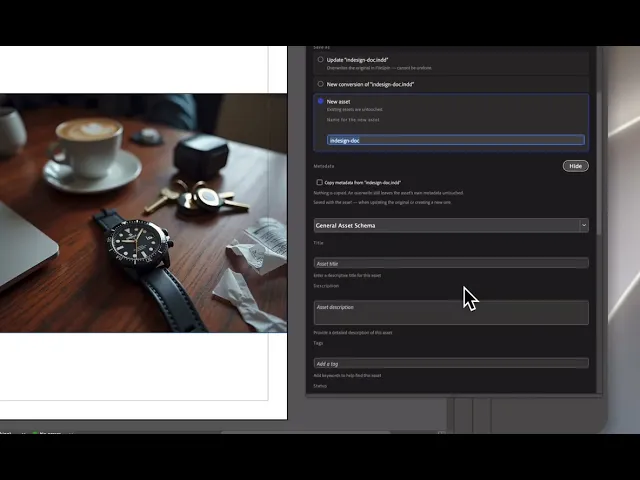
When the layout is ready, export as PDF or INDD and save it back through the panel. As in Photoshop, you choose whether to update an asset, create a new one or attach a conversion, and supply the relevant metadata.
For a brochure or product catalogue, that connects finding the source imagery with returning the finished document to the library.
Premiere Pro: from source footage to finished export
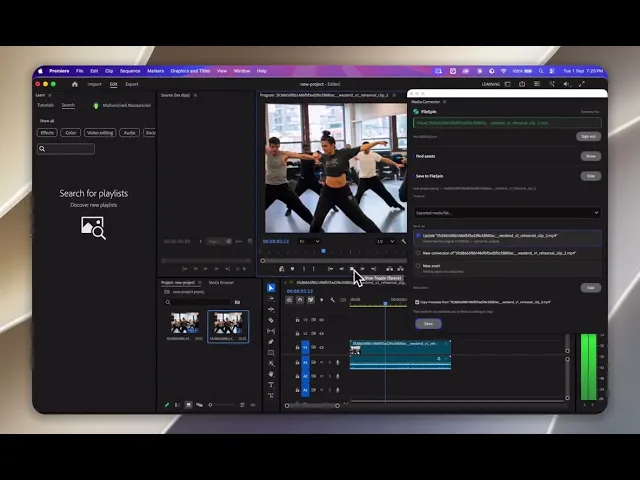
In Premiere Pro, the connector imports video, audio and images from FileSpin into the Project panel. It can also open a Premiere Pro project file from your library.
You continue editing and rendering with your usual Premiere Pro or Media Encoder settings. Once the export is ready, use the FileSpin panel to upload the finished media. You can upload the project file itself too.
The same choices apply: update an existing asset, create a new asset or add a conversion, with metadata supplied as part of the upload.
View the Premiere Pro connector
Try it with one piece of work
Each connector uses a one-time browser code to sign in, so you don’t enter your FileSpin password into the panel. The plugins request asset read and write access; they cannot delete assets in FileSpin.
You’ll need a FileSpin account and a supported Adobe application: Photoshop 26.0 or later, InDesign 20.0 or later, or Premiere Pro 25.6 or later. Customers running self-hosted FileSpin on a custom domain can contact support@filespin.io for a direct installation package.
Find the FileSpin plugins on Adobe Exchange.
Start with one image, layout or video project. Find the source in FileSpin, work on it in Adobe and return the result to the library. That is the workflow these plugins are built to support.
